User Guide
Reticle Metadata

The ReticleMetadata widget provides an interface for managing and visualizing reticle metadata. It allows you to add, update, and remove reticle metadata, and apply transformations such as rotation and offsets of reticle metadata to global coordinates.
This tool is essential for correcting reticle imprecisions. You can adjust reticle alignment errors by applying rotation and offsets, ensuring that the reticle is accurately aligned with anatomical landmarks.
Rotation (CCW, degrees): Adjust the rotation to correct any misalignment.
Offsets (X, Y, Z): Adjust the X, Y, and Z values to properly align the reticle with your target.
Note
Attaching the reticle glass to the metal frame can introduce small alignment errors. The ReticleMetadata widget helps correct these imprecisions. For example, if the X, Y, or Z positions differ from actual anatomical landmarks (such as the bregma location), you can adjust the offsets and rotation values to align the reticle accurately with the desired target.
Features Overview
Add / Remove Reticles: Easily create new reticles or remove existing reticle metadata.
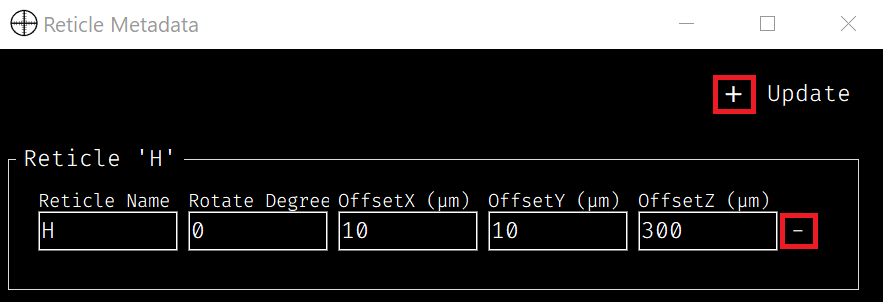
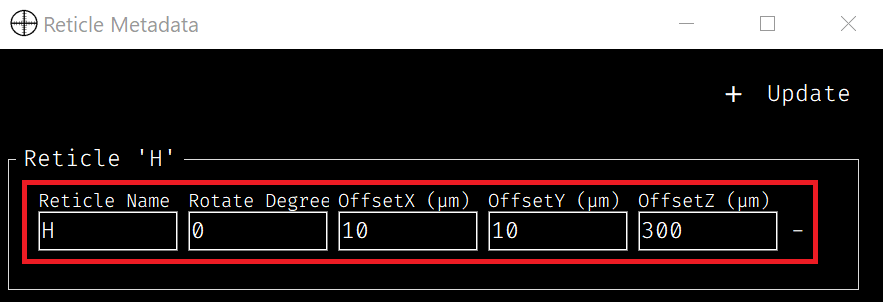
Edit Metadata: Update reticle metadata such as the name, rotation, and offsets.
Name: Edit the name of the reticle (default is a letter like A, B, or C).
Rotation: Set the rotation value (in degrees) to adjust the reticle’s orientation.
Offsets (X, Y, Z): Enter offset values to adjust the reticle’s position in 3D space.
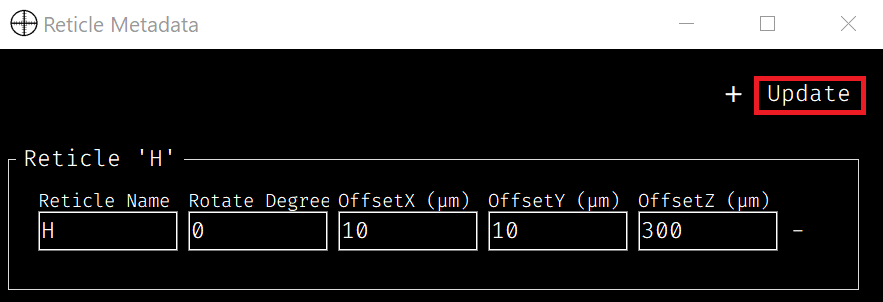
Update: Changes are saved to a JSON file and automatically reflected in other functions, such as the calculator and 3D point projection.
Saving and Loading Metadata
The widget automatically saves reticle metadata to a JSON file when updated. When you reopen the widget, it reloads the saved data and recreates the groupboxes accordingly.
Note
The metadata file is saved as
reticle_metadata.jsonin the UI directory.
Example Use Cases
If you update the reticle metadata for reticles ‘A’ and ‘H’, as shown in the image below, the system will automatically apply the changes to the global coordinates.
If the original global coordinates were (2000, 0, 0), as shown in the left image below, you can click the “Global coords” drop-down menu to select the reticle for which you want to see the global coordinates.
The image below shows that you selected reticle ‘H’ and the system applies the metadata changes to the global coordinates.
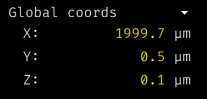 Global Coords Original→
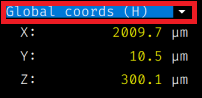 Global Coords (H)
In another example, the image below shows reticle ‘A’ with metadata applied, including a 90-degree counterclockwise rotation.
Original Image→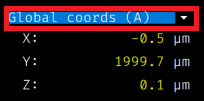 Global Coords (A)
These reticle metadata values are also used in the calculator and for 3D point projection.
Calculator: You can convert local coordinates (stage coordinates) to global coordinates with reticle metadata by selecting the appropriate reticle from the drop-down menu. The calculator will automatically apply the metadata changes to the global coordinates based on your selection. For more details, see the Calculator section.
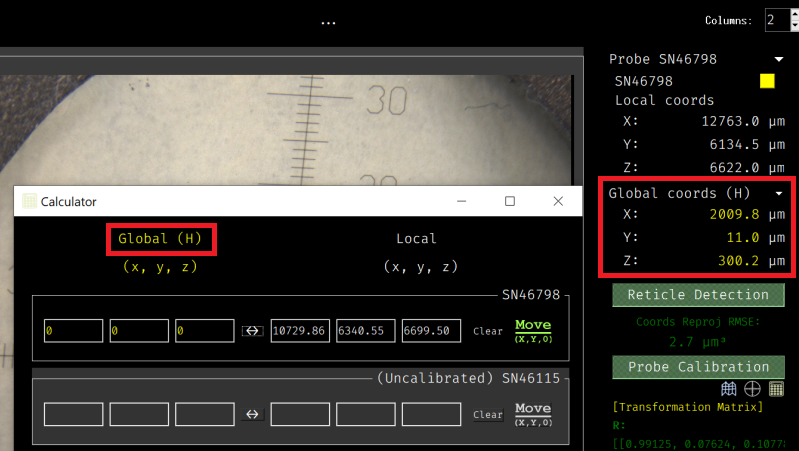
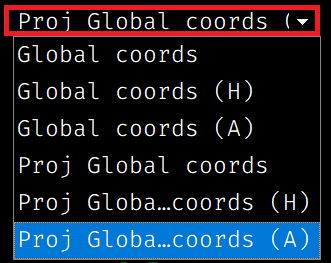
3D Point Projection: If you select ‘Proj Global Coords (reticle name)’ from the “Global coords” drop-down menu, and then click images in the camera views, you can see the 3D point projection of the clicked point. For more details, see the ‘3D Point Projection’ section.