FAQs
Reticle Detection
How can I optimize my reticle for automated detection?
Make sure your reticle appears similar to these examples:

Centered and in focus: The reticle should be well-centered in the view, with its center in clear focus.
Properly illuminated: The reticle should be evenly lit without any harsh reflections or shadow regions.
Appropriate size: The reticle should occupy a significant portion of the view, without being too small or too large.
Clear and unobstructed: The reticle surface should be clean, free of debris, dirt, or any obstructions, including probes, that could interfere with detection.
Consistent background: The reticle background should be plain and consistent, without any patterns or irregularities that might affect detection. We recommending sticking some white paper to the back of the reticle to provide a consistent background.
What can I do if automated reticle detection is not working?
Possible reasons and solutions:
Brightness is too high or too low:
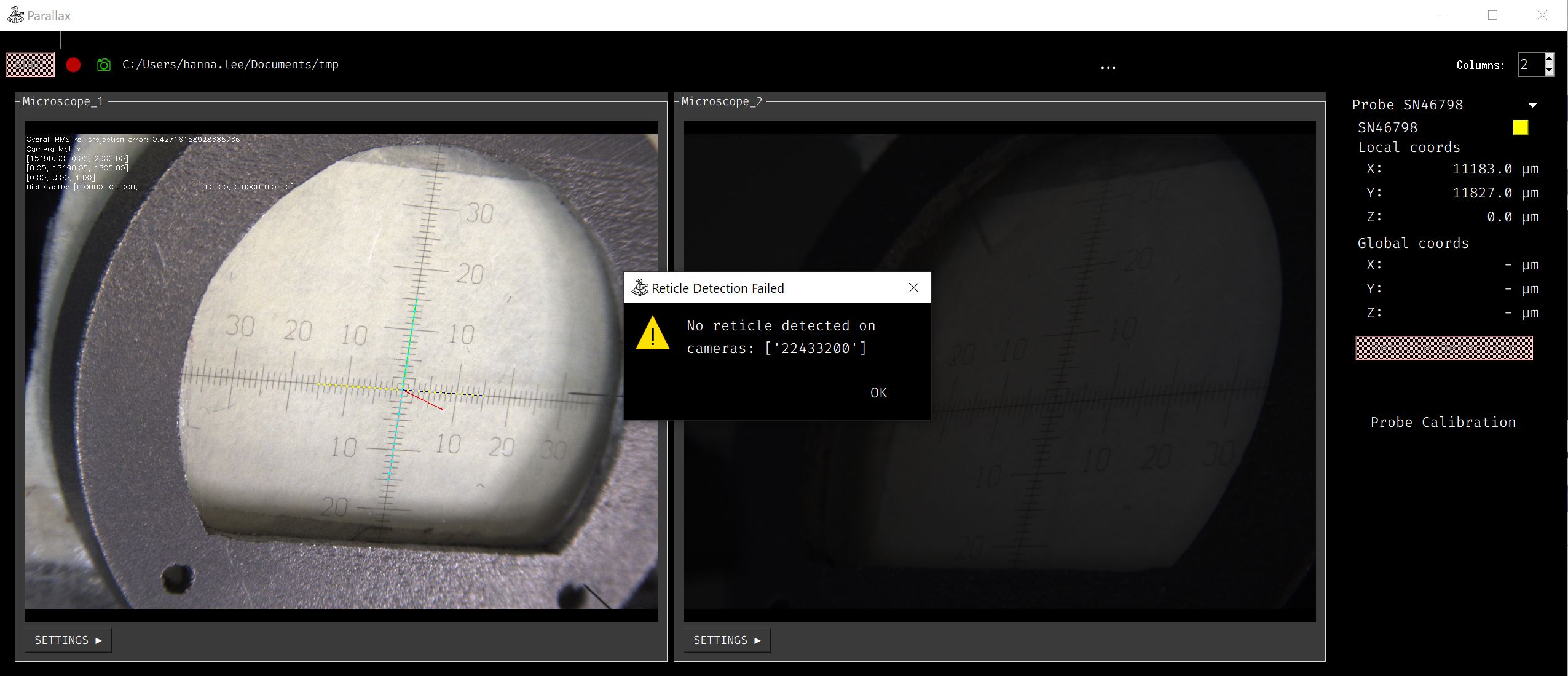
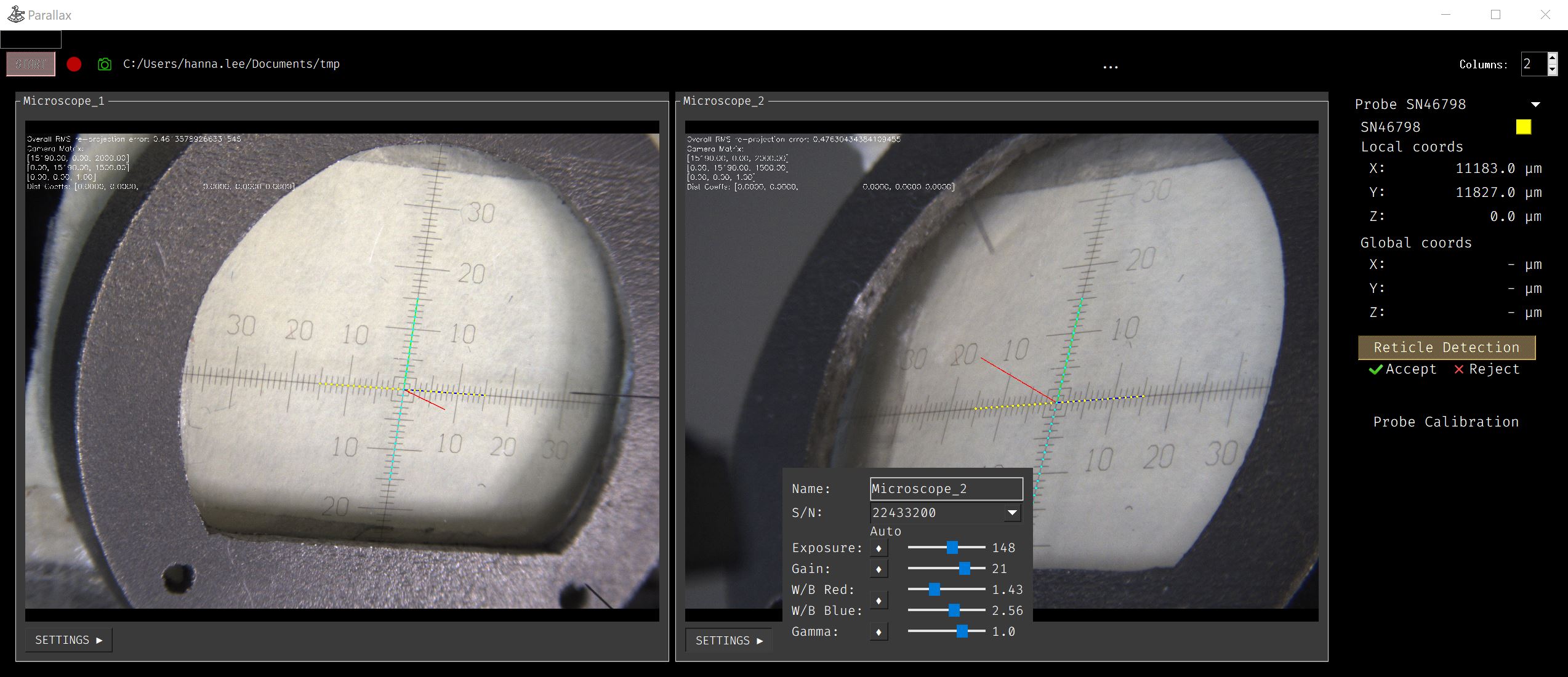
Solution: Adjust the brightness to the optimal level.
Reticle is out of focus:
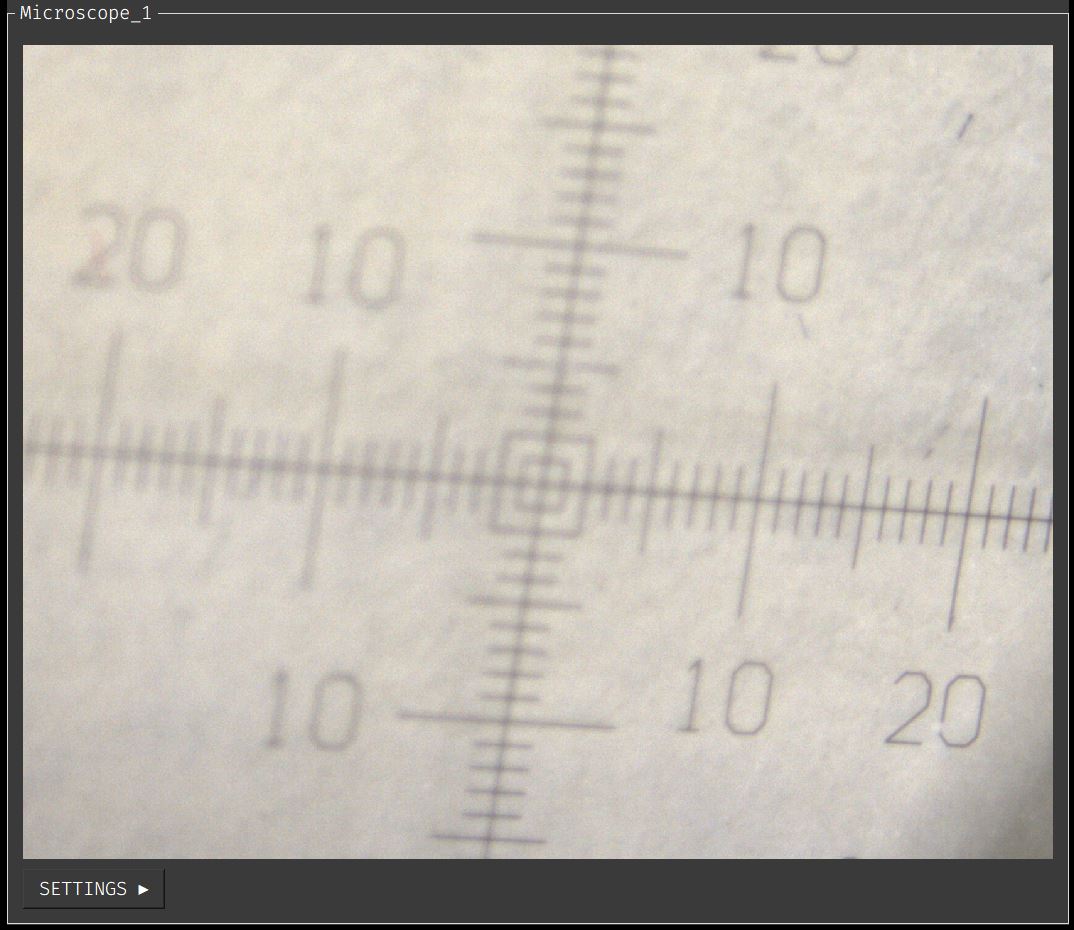
Solution: Move the camera relative to the reticle so that the center of the reticle is in focus.
Reticle view is too small:
Solution: Zoom in the camera view so that the reticle view is larger.
Only partial reticle is visible:
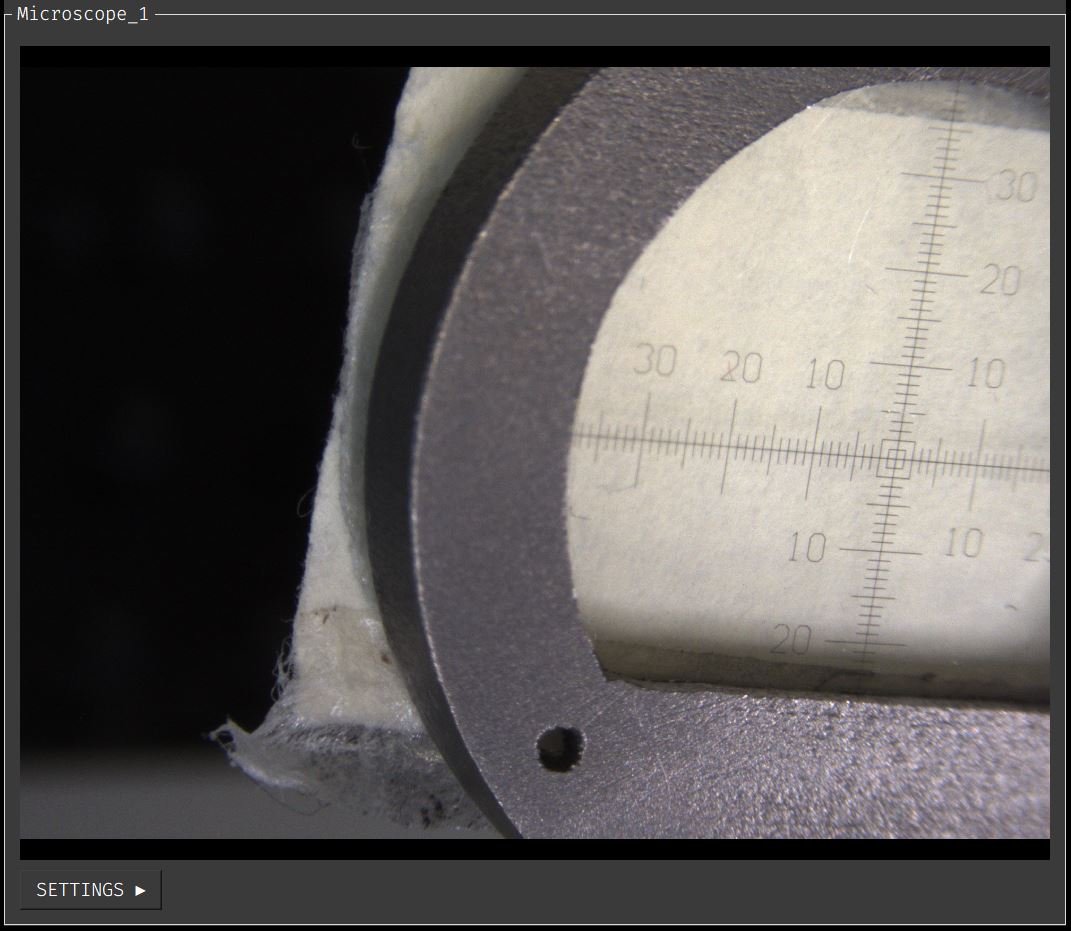
Solution: Ensure the reticle is well-centered in the view.
Inconsistent lighting such as light reflection or shadow regions:
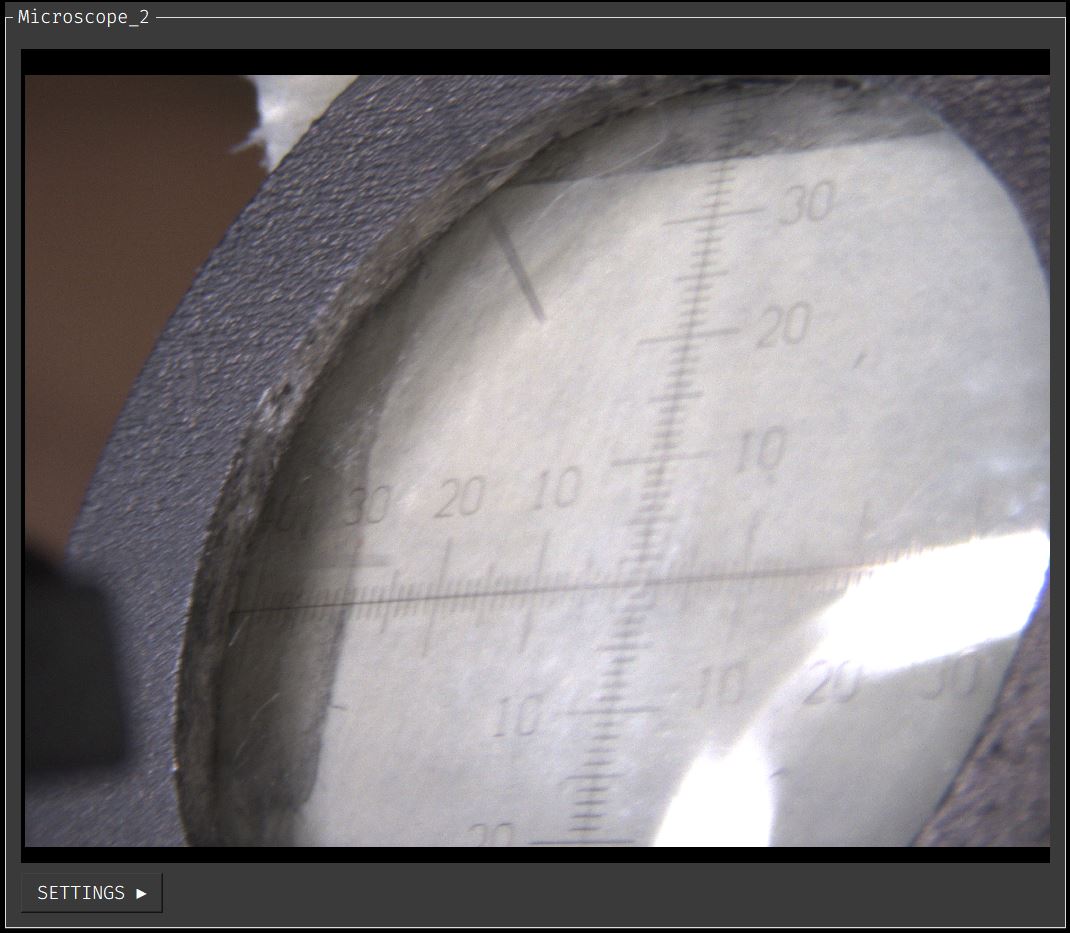
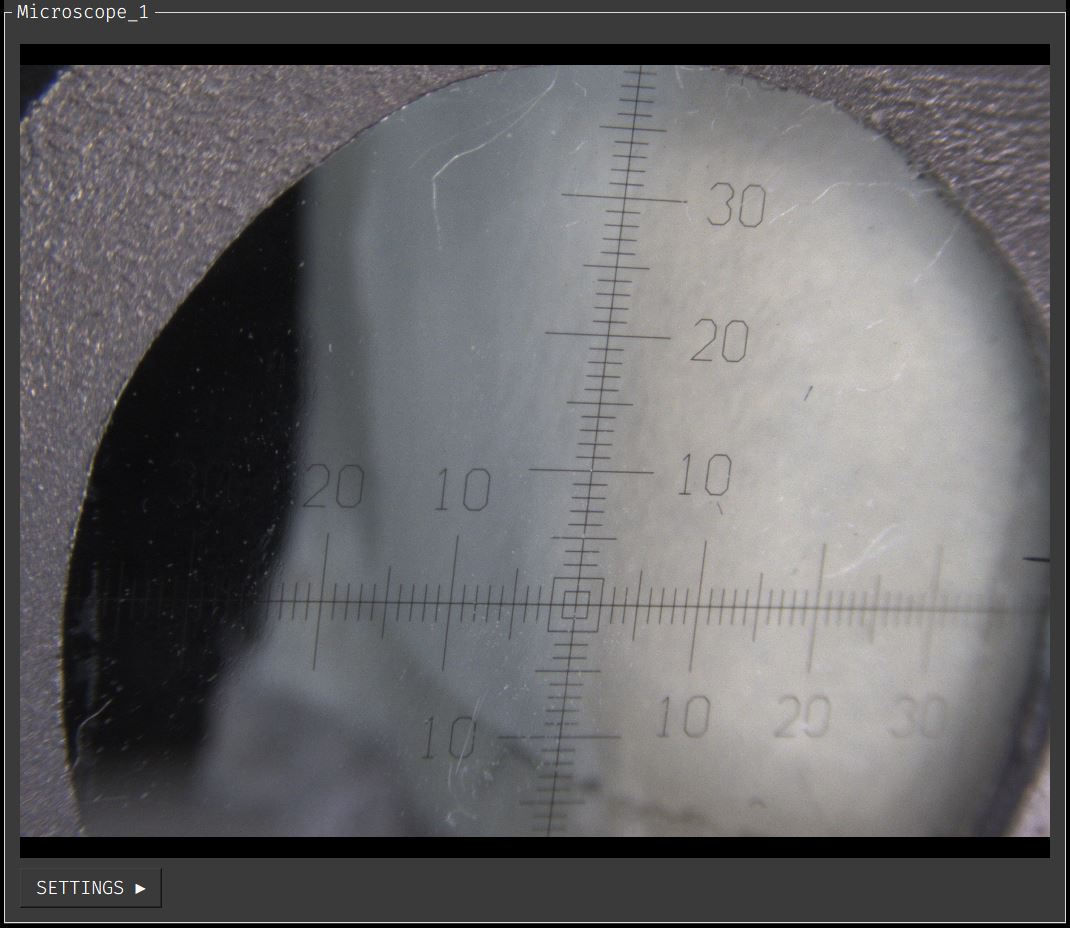
Solution: Make sure the reticle background has consistent lighting.
Occlusion of reticle due to dirt or debris:
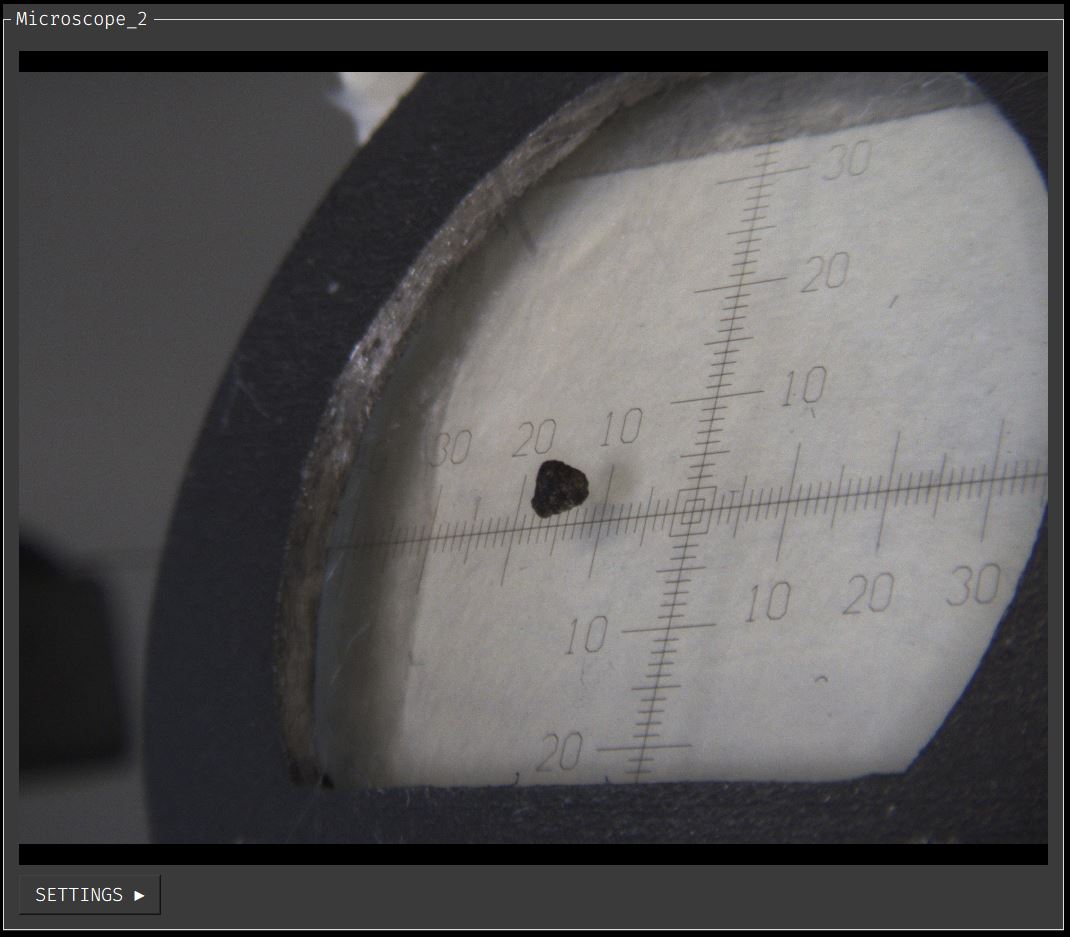
Solution: Clean the reticle surface to remove any debris or dirt.
Inconsistent background images:
Solution: Make sure there are no non-uniformities in the reticle background. Attaching plain white paper to the back of the reticle is recommended.
Reticle background is too dark:
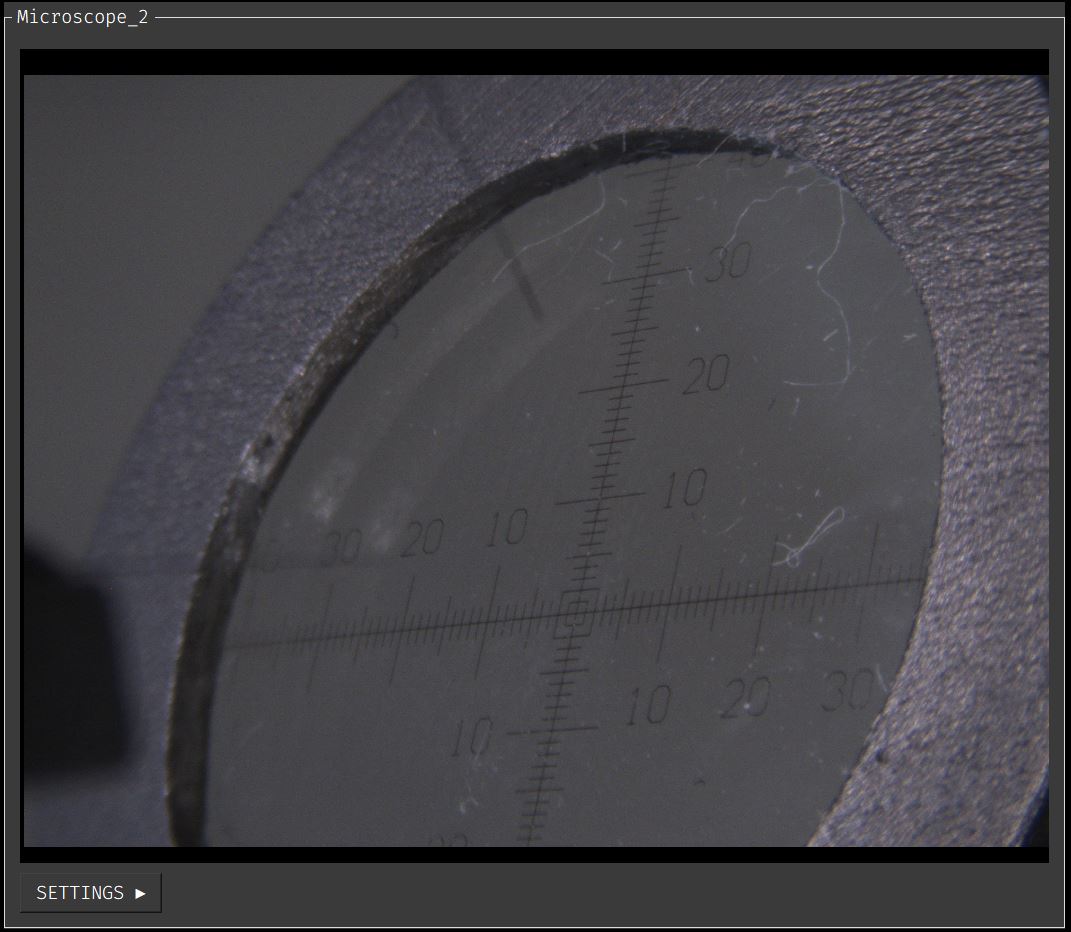
Solution: Use a white paper as a background to increase the contrast between the reticle and the background.
How can I fix high reprojection error?
Possible reasons and solutions:
Debris or dirt on the reticle surface causing misalignment:
Solution: Clean the reticle surface to remove any debris or dirt, which the algorithm may mistakenly identify as part of the reticle.
View is too far from the reticle, making it appear too small:
Solution: Move the camera closer to the reticle to ensure it occupies a larger portion of the view.
Reticle view is too skewed, causing a small in-focus region:
Solution: Adjust the camera position so that the view is less skewed, and the face of the reticle appears as flat as possible.
General Interface
If I turn on Parallax, it shows noisy data on the view and does not display the camera view. What should I do?
Parallax is currently under development, and some functions are not stable. If camera resources are not cleared up in the previous session, such as when the app exits forcefully or the camera interface is unplugged, it can cause this issue.
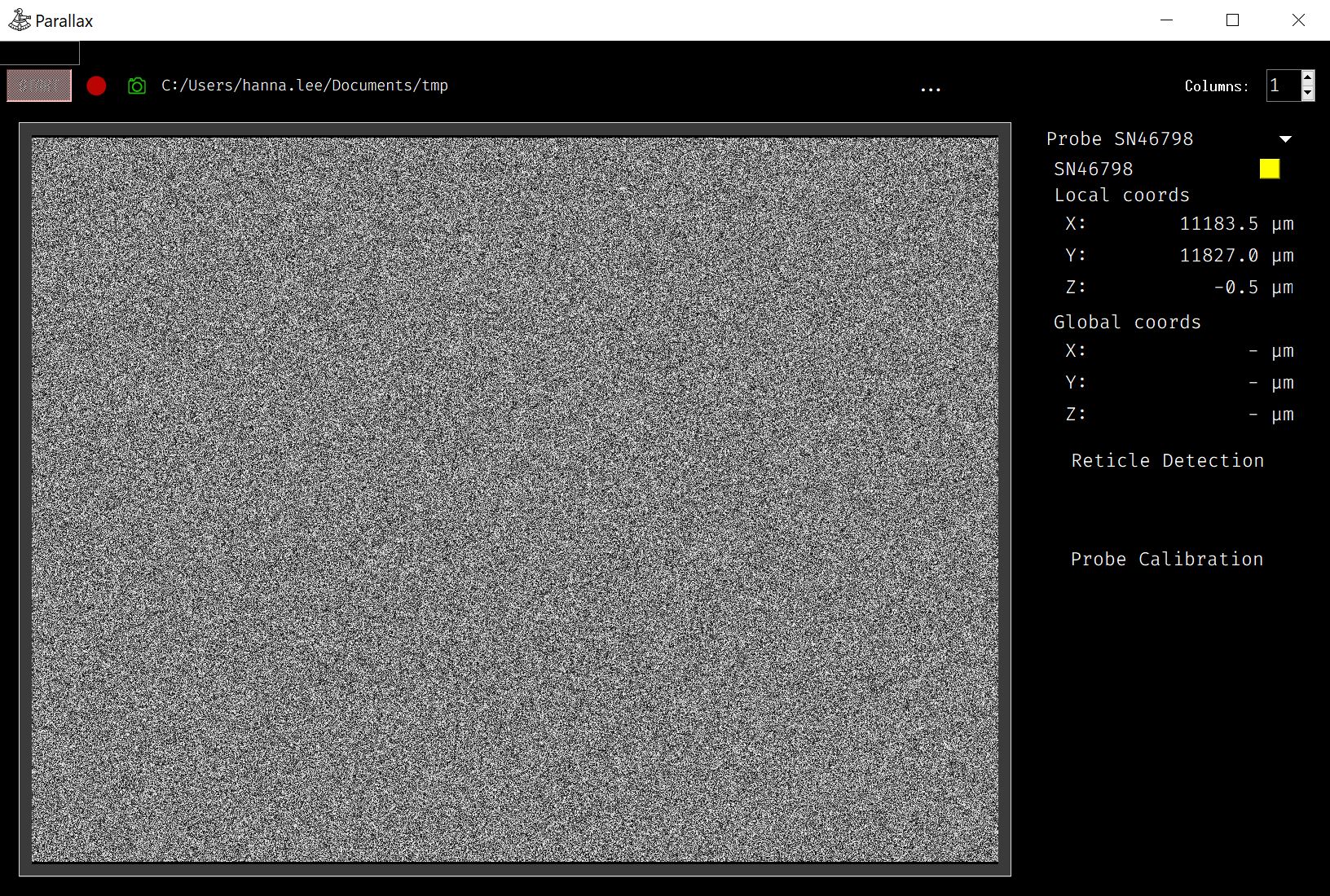
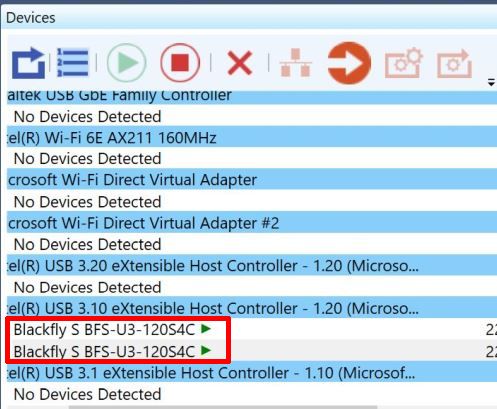
Solution: Use Spinview to reset the camera resources. Steps to reset the camera resources:
Close Parallax.
Open Spinview and start and stop streaming on all cameras to reset the camera resources.
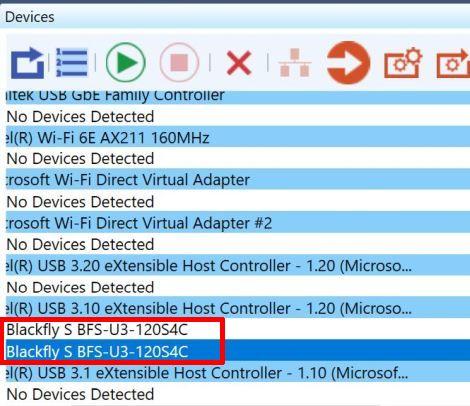
Launch Parallax again.